The search and filter page gives your candidates a user-friendly and intuitive way to quickly find the right job. The page is easy to set up and offers numerous features specifically tailored to the needs of your target groups.
This guide walks you through how to set up the search and filter page and integrate it into your JobShop step by step.
The search and filter page can only be activated and used if the new home page in your JobShop is already activated and in use.

If you are not yet able to access the editor for the search and filter page, please feel free to reach out to your talentsconnect contact. Your contact will also be introducing the search and filter page to you shortly.
Want to learn more about the search and filter module?
With the search and filter module, you can display pre-filtered jobs on your custom pages in the JobShop. This lets you reach your target groups even more effectively and increases the application rate. Find out here how to set up and make the most of the module:
Search and Filter Module: Maximum Flexibility for Your Recruiting Strategy
Quick overview: Custom Pages & Search/Filter Page – with Pierre from Support
Benefits of the Search and Filter Page
The search and filter page makes job searching easier and more targeted:
- Direct overview of all job listings
The page displays all jobs in a JobShop clearly at a glance – without navigating through categories. - Lightning-fast search
The free-text search allows candidates to find relevant jobs by job title using keywords. - Flexible filter options
Candidates can narrow down their job search using suitable filters. - Relevance for your target groups
You choose exactly the filters that make sense for your candidates and your company.
Optimizing the Candidate Journey
The search and filter page integrates seamlessly into the candidate journey of your JobShop. For example, it connects your home page directly to the job level and provides clear access to all relevant job listings – either pre-filtered by specific criteria or showing all jobs at a glance.


Want to try out the search and filter page yourself?
No problem. In our demo, we've set everything up as an example and you can click through the complete candidate journey here:
https://olsen-breuner.job-shop.com/demo/search
Editor for the Search and Filter Page
You can find the editor for setting up and editing the search and filter page for each specific JobShop in the page manager of the talentsconnect home.

Setup in Five Steps
Note:
If no jobs appear in the results list after opening the search and filter page in the editor, please contact your talentsconnect contact person.
Setting up the search and filter page is straightforward and takes five steps:
- Configure the layout
- Select filters and display options
- Define SEO settings and heading
- Check preview and activate the page
- Link the search and filter page
Step 1: Configure the Layout
The layout of your search and filter page should put the most important elements – search, filters and jobs – front and center.
- Corporate design
Logo, colors and other design elements are automatically taken from the base settings of your JobShop. - Choose theme and background
Choose between a light or dark design (recommendation: light). White works well as a background color. The colors of the other elements adjust automatically to provide sufficient contrast. If you choose the dark theme, you should also use a dark background. - Set accent color
This color highlights selected filters and search results. Choose an accent color that matches your call-to-actions on other pages. You can see how the accent color is used in the preview by, for example, selecting a filter or hovering your cursor over a job card in the results list. - Design job cards
Customize the design of the job cards – rounded or square, depending on your corporate design guidelines.

Step 2: Select Filters and Display Options
Note:
For some of the selected filters, no data may be available in your JobShop. This may be because the data is not yet being transferred via your applicant tracking system or has not yet been configured for that field. If you have any questions, our support team is happy to help.

Select the filters that enable your candidates to search as effectively as possible. We therefore recommend using a maximum of five to seven well-considered filters that are truly relevant to your target group – e.g. location, department, working hours or career level.
Important: The chosen filters should be clearly understandable, meaningfully named and applicable to the majority of your job listings. This enables an intuitive, goal-oriented search – and thus a better candidate experience.
| Filter | Usage and Details | |
|---|---|---|
| Company company | Useful when various organizational units or brands post jobs in your JobShop and this helps candidates orient themselves. | |
| Career Level career_level | Allows candidates to search specifically for jobs that match their professional experience level. Useful when your JobShop offers positions for different career stages and you want to improve orientation for various target groups. Career level categorization can be customized based on information from the interface (e.g. student, entry-level, etc. or no professional experience, < 5 years of experience, etc.) | |
| Department department | Corresponds to the job categories you use in the JobShop and helps candidates identify the relevant specialist area. The filter will only display a list of different departments if you use job categories in this JobShop. | |
| Cluster cluster | Enables a more detailed breakdown of your job listings by specific job profiles – e.g. "Sales Representative", "Customer Service" or "Warehouse Logistics". Particularly helpful for frequently advertised positions available at many locations. Useful when you offer a large number of similar jobs and want to give candidates a targeted pre-selection by specific roles – regardless of location. | |
| Location location | Always useful, as candidates often search within a specific area and want to see which locations have open positions. | |
| Country country | Helps narrow the search geographically to specific countries – particularly relevant if your company operates internationally or has locations abroad. Useful as soon as you post jobs in multiple countries or are also targeting candidates from different markets. | |
| Start Year start_year | Generally only useful in the apprenticeship and training sector, for example when positions are already being advertised for the coming year. Year values such as 2025 or 2026 are displayed as filter options. | |
| Contract Type contract_type | Allows filtering by contract type – such as permanent, fixed-term, internship, working student or freelancer. Useful when you offer different employment models and want your target groups to be able to filter specifically by suitable contract types. | |
| Working Hours schedule | Helpful when you offer different working time models such as part-time and full-time and this is also important for your target group. Options are divided into "Full-time", "Part-time" and "Flexible". | |
| Weekly Hours working_hours | Useful when you offer different part-time models on an hourly basis and this is a key decision factor for your target group. The different weekly hours from the job data are displayed as filter options. | |
| Work Mode work_mode | In times of remote work, this is an important filter criterion for your candidates if you offer such working models. Options are divided into "Hybrid", "On Site" and "Remote". | |
| + up to six custom filters custom_filter_1-6 | In addition to the standard filters listed above, you can set up up to six so-called custom filters. These allow you to map individual criteria in the search that precisely match your content, target groups or specific recruiting needs. On custom pages (e.g. target group pages or location pages), you can vary the displayed filters dynamically. This allows the filter experience to be optimally tailored to the context and target group. To set up custom filters, simply contact our support team – we're happy to help you with the implementation. Make sure that the desired filter data is already being transferred to the JobShop via your applicant tracking system interface. Only then can it be used and displayed in the filter. | |
How the Filters Work
The filters on the search and filter page are designed to work adaptively. This means that the available options within the filters automatically adjust to the selections already made. Candidates are always shown only the options that match their previous inputs and for which results still exist.
This gives candidates a dynamic and intuitive user experience: every selection remains relevant and reduces the number of irrelevant options.
Filters are linked by AND logic:
Combining different filters narrows down the results further.
Example: If a candidate selects the location "London" and additionally the department "Marketing", only Marketing jobs in London are displayed.Options within a filter are linked by OR logic:
Selecting multiple options within a filter expands the results accordingly.
Example: If a candidate selects "London" and "Manchester" in the "Location" filter, jobs from both cities are displayed.
Step 3: Define SEO Settings and Heading
In the "SEO" section of the JobShop settings for your search and filter page, you define how the page appears in search engines like Google and what heading is displayed on the page itself.
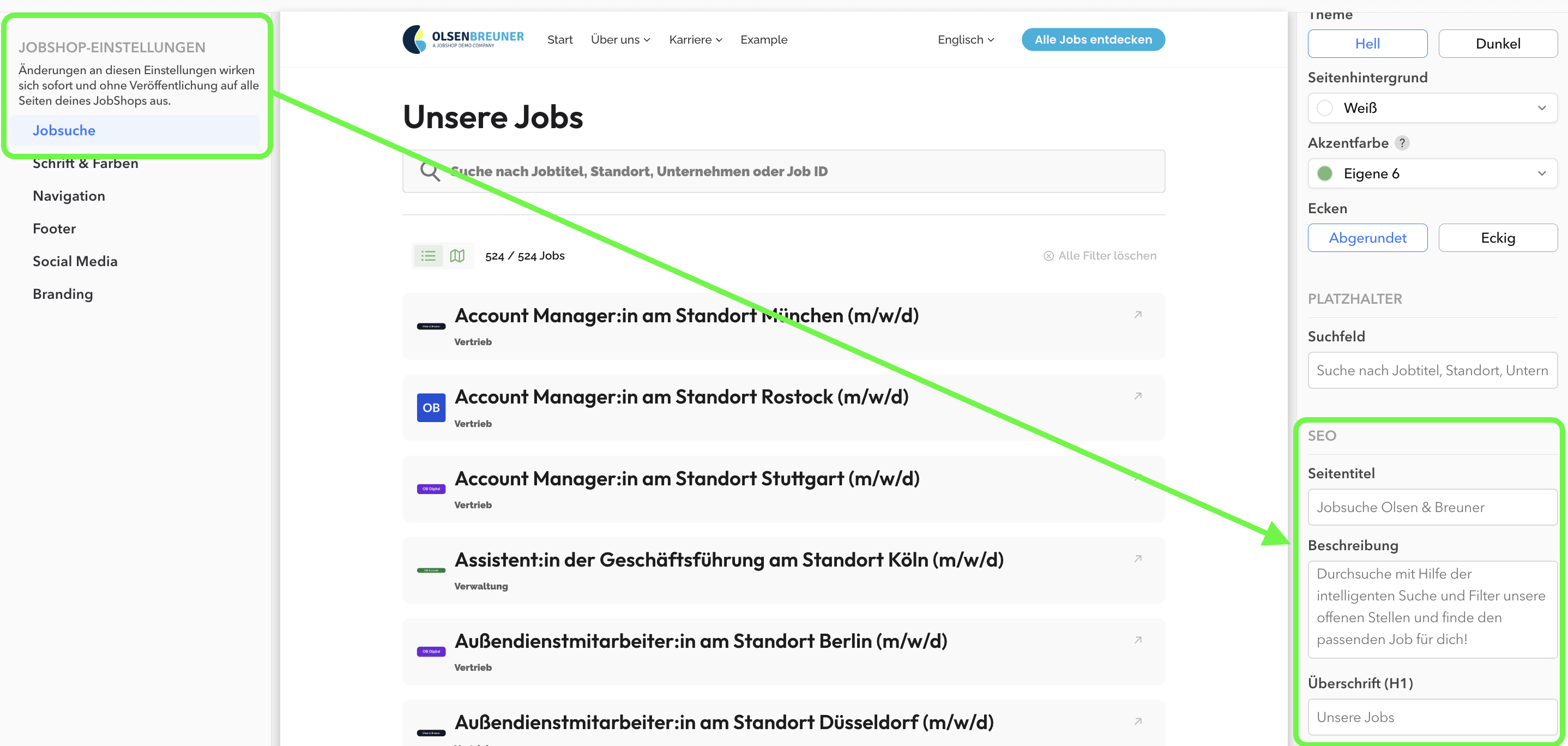
- Page title
Enter the SEO title for the search page here. This title is displayed as the page title in the browser tab and as the clickable heading in Google search results – not the default label "Search". - Description
Enter the SEO description for the search page here. This meta description appears in Google directly below the page title and is intended to encourage candidates to click. - Heading (H1)
Unlike the page title and description, this heading is actually visible on the search and filter page itself, displayed directly above the jobs.
Step 4: Check Preview and Activate the Page
Before activating the search and filter page, you can check in the preview to make sure everything works as intended:
- Is data already being displayed in the filters you selected? (see note on filters in Step 2)
- Are the jobs and their data displayed correctly (check a random sample)?
- Does the appearance match your corporate design?
Activate
Once everything works as intended, you can make the search and filter page available via the editor by clicking "Activate search and filter page". The search and filter page can then be accessed via the link in the editor preview.

If you have problems with the activation or if the search and filter page is not accessible after activation via the link shown in the preview, please contact our support team directly.
Note:
When the search and filter page is activated, the sidebar on job detail pages is automatically hidden. Job detail pages always open in a new tab when clicked from the search and filter page – a proven pattern also used by many online shops and booking platforms.
Step 5: Link the Search and Filter Page
To make the search and filter page a permanent part of the candidate journey in your JobShop, simply copy the link at the top of the preview of your search and filter page.
The search and filter page is always accessible at the following path for each of your JobShops once it has been activated (example address):
https://my-job-shop-name.companyname.com/search |

- First, copy the link to the search and filter page by clicking "Copy URL" in the bar above the preview.
- Now open the editor for your home page in the talentsconnect home and insert the link to the new search and filter page for the central call-to-action in the navigation (top) and in your cover module (or start module).
- Additionally, you can of course also add the new link to other elements on the home page and on further pages. This is particularly useful wherever a link to the category overview is currently in place.

Pre-filtering the Search and Filter Page
Tip:
When you select filters or enter a search term in the preview, the link to your search and filter page is automatically extended to include the selected filter options (or search terms). You can use this extended link, for example, to link a pre-filtered search – such as for a specific location – directly on your pages. This way you always guide your candidates individually to the right jobs and provide them with the best possible orientation. You can of course also apply this pre-filtering to your campaigns.
Example:
Free-text Search
The free-text search on the search and filter page uses a semantic search algorithm and enables not only searching by job title but also searching by locations, postal codes, company names and external job IDs.
Semantic search is an intelligent search method that understands not only keywords but also the meaning and context of a query. It aims to deliver more relevant results to users by recognizing synonyms, related terms and semantic connections. This makes searching in the JobShop more intuitive and effective.
Examples:
- Synonyms and related terms
Terms like "software developer" also return results such as "programmer" or "app developer". - Precise results
Even with vague or general queries, the search delivers more accurate results through meaning analysis. Typos are also recognized and still lead to matching search results.
Through semantic search, users reach the right jobs faster, even when the exact terms are not used.
Display Options: Job Details in Search Results
In addition to the job title, you can display up to three further pieces of job information on the job cards. Select the three most important pieces of information for your target group to direct your users' attention to the key decision criteria. In addition to the job title, we generally recommend always displaying the location as well.

Editing the Search and Filter Page
After successfully activating the search and filter page for your JobShop, you can of course edit or expand the page's features at any time.
Note:
Please note that when editing, all changes to the search and filter page in the editor immediately become visible to your candidates in the JobShop without any further publishing step, if the page has already been activated and is in use.
Guide in the talentsconnect home
With the new search and filter page, you can guide your applicants in a targeted and effective way to the right jobs. Use the interactive guide in the editor of the search and filter page in the talentsconnect home and set up the page today to start benefiting from its advantages.
Was this article helpful?
That’s Great!
Thank you for your feedback
Sorry! We couldn't be helpful
Thank you for your feedback
Feedback sent
We appreciate your effort and will try to fix the article