In talentsconnect Home you can specifically select which job should be displayed for the preview in the editor. This way you can see at any time how your job detail page looks with real job data – both for jobs from the ATS and for manually created positions.
Select a Job for Preview
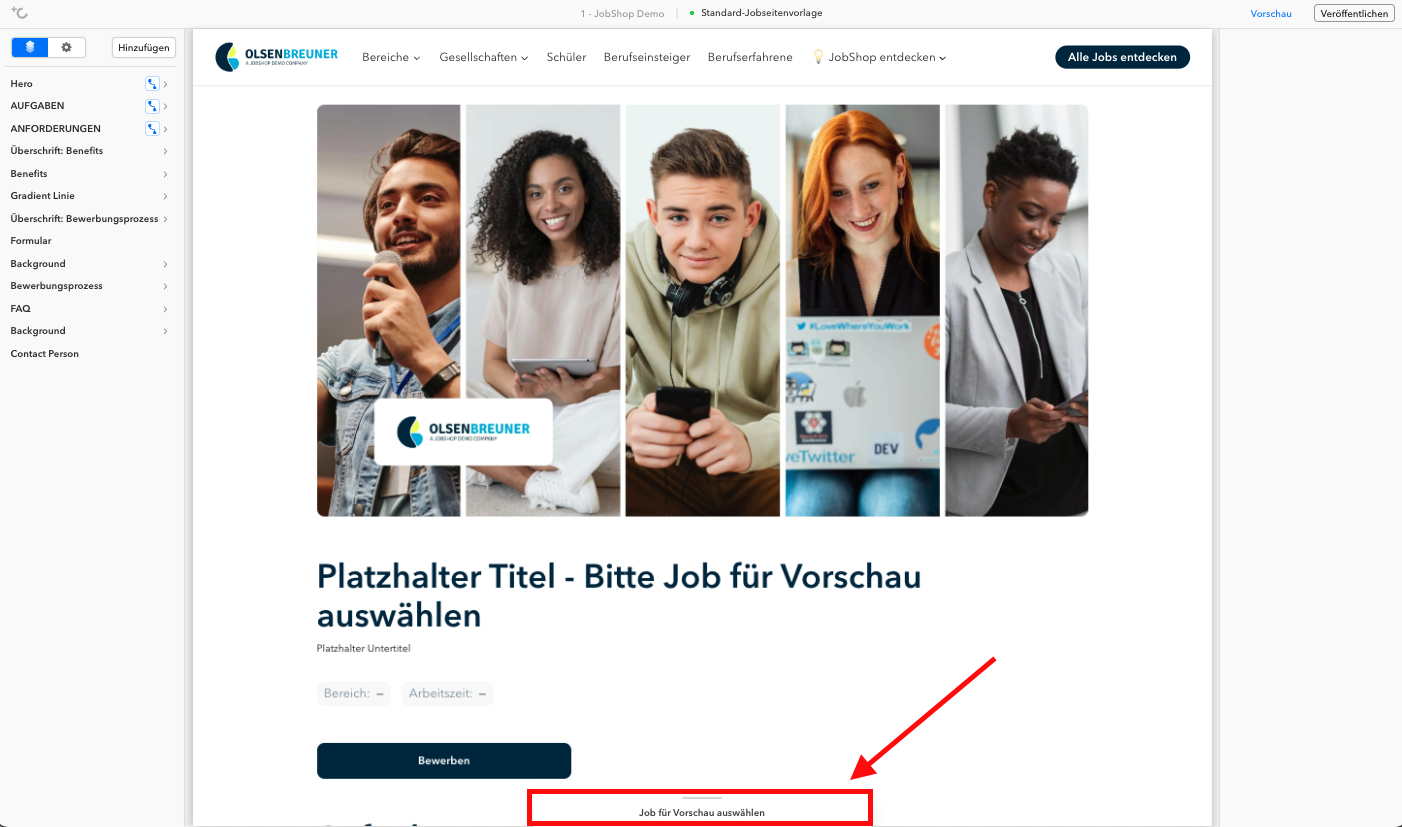
At the bottom of the editor you will find the button "Select job for preview".
Here you can select a specific position:
Jobs from your applicant tracking system (ATS)
Manually created jobs in the JobShop
After selecting, the job is loaded directly in the editor as a preview.
Dynamic Content in the Editor
Once a job is selected, all modules that are linked to job data are automatically populated with the corresponding content. The editor thus adapts dynamically to the selected position.
This applies to the following modules, among others:
Hero module (e.g. job title, location, working hours - exception: the image is static)
Job text field modules (e.g. tasks, profile, offer, introduction)
Contact person module
The content is automatically taken from the job data and displayed directly in the modules.
Important note on editable content
The job data displayed in these modules cannot be edited in the editor.
Changes to this content must be made exclusively in the ATS or the respective job data source
The editor serves here for design and preview, not for maintaining job content
This keeps your job detail page always consistent with the centrally maintained job data.
Special Feature: The "Job Text Field" Module
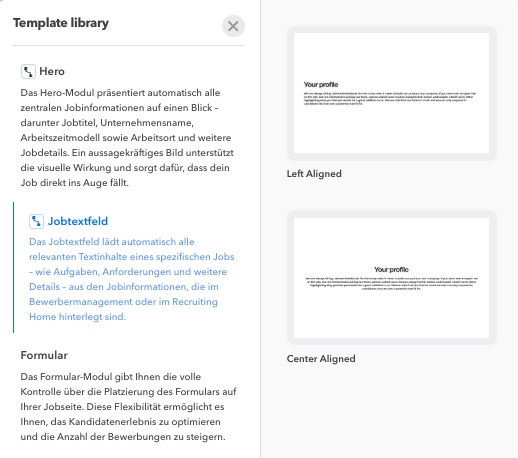
The job text field module dynamically displays text content from your applicant tracking system.
Select a Data Field in the Sidebar
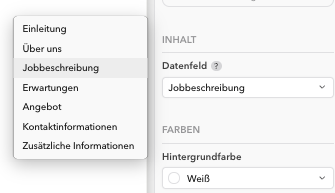
On the right in the sidebar you can specify which job text field should be displayed in the respective module. The available fields are based on your JobShop setup and the connection to the ATS.
Typical Use Cases
In most cases, the job text field module is used for the following content:
Introduction
Tasks
Profile / Requirements
Offer / Benefits
Why Can a Job Text Field Be Empty?
A job text field may appear empty if:
no data has been transferred from the ATS for this field
or the field has not yet been set up in the mapping
The data transfer is handled via an individually configured mapping between your applicant tracking system and the job text fields available in the JobShop.
Example:
It is possible that all job texts delivered from the ATS via the interface have been mapped to a single selectable job text field in the JobShop.
Identification of Data-Based Modules
Modules and fields that are directly linked to job data are visually marked in the editor.
On these modules you will find a small icon that signals to you that the displayed content:
is automatically loaded from the job (ATS or manual)
cannot be edited directly in the editor
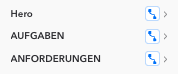
This allows you to see at a glance which modules are data-based and serve exclusively as a preview.
Tip: Using the Job Preview
Use the job preview mode to check:
which job text fields already contain content
which content is successfully transferred from the ATS
and whether the current mapping meets your expectations
Was this article helpful?
That’s Great!
Thank you for your feedback
Sorry! We couldn't be helpful
Thank you for your feedback
Feedback sent
We appreciate your effort and will try to fix the article