Post jobs with VONQ – here’s how it works on talentsconnect Home

Modified on Thu, 9 Apr at 12:51 PM

    With the VONQ integration, you can publish your jobs directly from talentsconnect Home to over 2,500 job boards and channels worldwide. This article shows you step by step how to start a campaign and keep track of everything.

    Directly from talentsconnect Home No external tool needed
    2,500+ job boards Maximum reach per click
    ✔️ Everything at a glance ROI & performance centrally trackable

    Step 1 – Find the “Promote with VONQ” button
    1
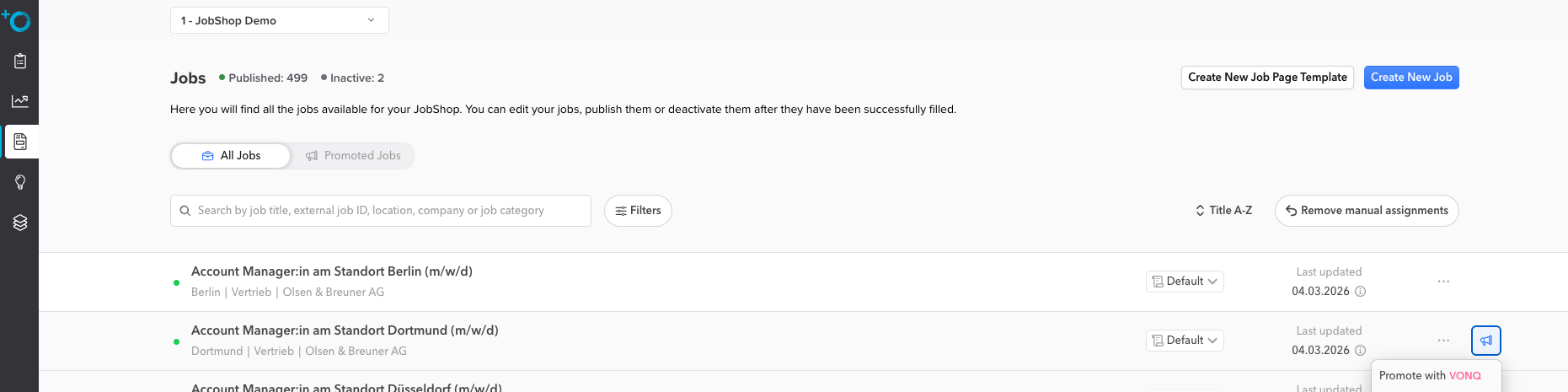
    Open the Jobs section in talentsconnect Home.
    2
    Find the job you want to promote in the job list.
    3
    Click the megaphone icon on the right. The option “Promote with VONQ”will appear.


    ℹ️ Note: The button is visible for every published job. It is not available for inactive jobs.

    Step 2 – Select platforms

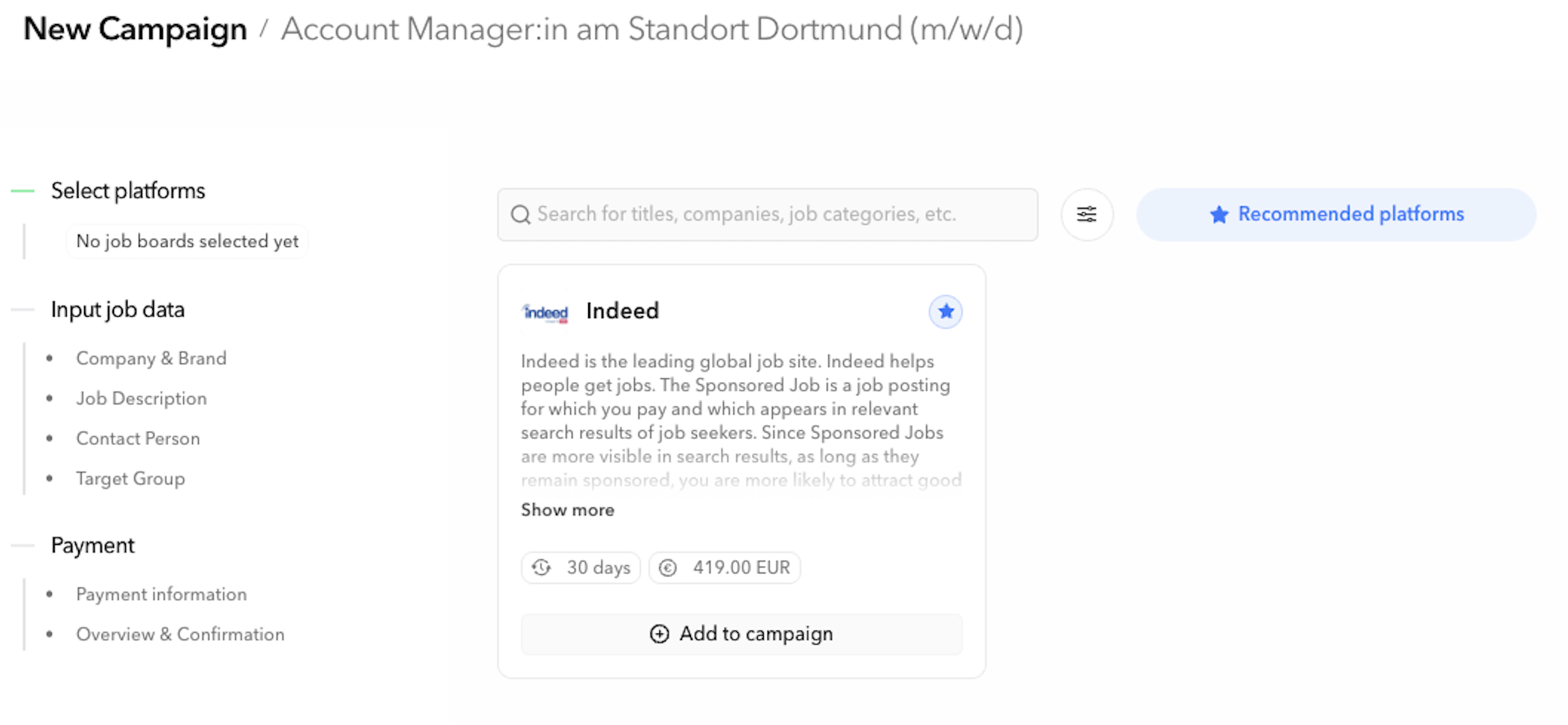
    After clicking “Promote with VONQ”, the campaign creation opens. You will see an overview with recommended job boards tailored to your job and target audience.
    1
    Choose suitable job boards under “Recommended Platforms” – or search for a specific platform using the search field.
    2
    Each job board shows you the duration (e.g. 30 days) and price (e.g. EUR 419.00) directly on the card.
    3
    Click “Add to Campaign”to add a job board to the campaign. You can combine multiple platforms.


    ℹ️ Tip: The recommendation is based on the job title, job category, and location. 

    Step 3 – Enter campaign details & book

    After selecting the platforms, the campaign creation guides you through the following steps:

    StepWhat is being asked?
    Company & BrandCompany name and employer brand for the listing
    Job DescriptionJob description – automatically pulled from the JobShop
    Contact PersonContact person for inquiries
    Target AudienceTarget audience of the job (professional field, experience level, etc.)
    Payment InformationChoose the payment method and enter the payment details for the booking:
    Important: When booking for the first time, enter a valid tax number and the correct company address to be able to complete the booking.
    Overview & ConfirmationSummary and completion of the booking
    ⚠️ Important: Make sure that all job data in the JobShop is complete and up to date before starting a campaign. Incomplete data can lead to delays in publication.

    Step 4 – Keep track of campaigns

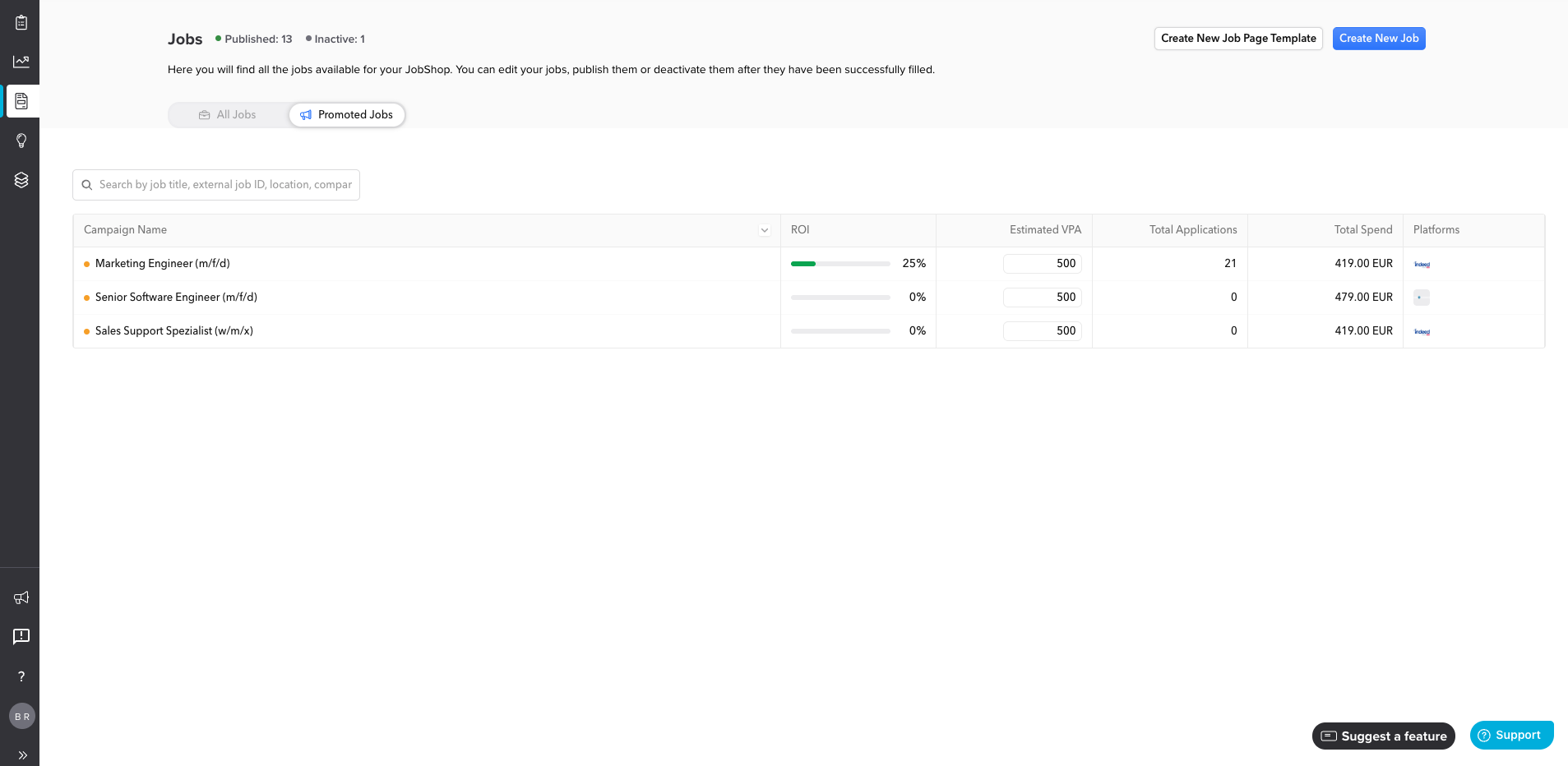
    After booking, you can find all running and completed campaigns under Jobs → “Promoted Jobs”. At a glance, you can see:

    ColumnWhat does it mean?
    Campaign NameName of the promoted job / Individually assigned campaign name 
    ROIReturn on Investment – percentage value showing how well the campaign performs (green bar = positive)

    Calculation: Estimated Value per Application (VPA) x Number of applications from the campaign / Total campaign costs
    Estimated Value per Application (VPA)Estimated cost per application (Value per Application)
    Total ApplicationsTotal number of applications received through this campaign
    Total SpendTotal spend for the campaign in EUR
    PlatformsThe booked job boards (displayed as logos)

    ℹ️ Tip: An ROI of 0% does not automatically mean the campaign is performing poorly – for new campaigns, it takes a few days for data or applications to come in.

    Frequently Asked Questions about VONQ

    How long does it take until my listing is live?
    The processing time depends on the selected job board. 
    Can I end a campaign early?
    Yes. If you want to stop a campaign before the duration expires, please contact our support team. Provide the company name and the job title.
    Can I use my own job board contracts (BYOC)?
    Yes, through the “Bring Your Own Contract” (BYOC) feature, you can use existing contracts with job boards like StepStone or LinkedIn directly via VONQ. Contact our support team for this.
    ℹ️ Note: This feature is available from April 2026. 
    Where can I find more information about VONQ?
    Further details – including FAQ on campaign status, tracking, and budget – can be found in the article FAQ: VONQ Multiposting with the talentsconnect Home in our Knowledge Base.

    Was this article helpful?

    That’s Great!

    Thank you for your feedback

    Sorry! We couldn't be helpful

    Thank you for your feedback

    Let us know how can we improve this article!

    Select at least one of the reasons
    CAPTCHA verification is required.

    Feedback sent

    We appreciate your effort and will try to fix the article